board-pi-pico-2 Reference
Raspberry Pi Pico 2, an RP2350 microcontroller board with a dual-core ARM Cortex-M33 processor (or dual Hazard3 RISC-V cores), 520 KB of internal RAM, 4 MB of flash, and the flexible Programmable I/O (PIO) feature. It is the successor of the Raspberry Pi Pico and keeps its form factor and pinout. The Raspberry Pi Pico 2 W adds a wireless chip.
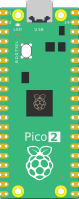
Pin names
Pins GP0 to GP22 are digital GPIO pins. Pins GP26, GP27, and GP28 are digital GPIO pins with analog input function.
| Name | Description | Analog input channel |
|---|---|---|
| GP0 … GP22 | Digital GPIO pins (0 to 22) | |
| GP26 | Digital GPIO pin 26 | 0 |
| GP27 | Digital GPIO pin 27 | 1 |
| GP28 | Digital GPIO pin 28 | 2 |
| GND.1 … GND.8 | Ground pins * | |
| VSYS, VBUS, 3V3 | Positive power supply | |
| TP4 † | Digital GPIO pin 23 | |
| TP5 † | Digital GPIO pin 25 + LED |
* The physical pin numbers of the ground pins are 3, 8, 13, 18, 23, 28, 33, and 38.
† These pins do not appear in the visual diagram editor, but you can use them in your diagram.json file.
Pins 3V3_EN / RUN / ADC_VREF are not available in the simulation and are therefore omitted from the table.
Onboard LED
The Raspberry Pi Pico 2 has an onboard LED, attached to GPIO pin 25. The LED is lit when the pin is driven high.
You can also use the LED_BUILTIN constant to reference the LED in your Arduino code:
pinMode(LED_BUILTIN, OUTPUT);
digitalWrite(LED_BUILTIN, HIGH);
Simulation features
The RP2350 is simulated with Wokwi's RP2350 emulator, which runs the ARM (Cortex-M33) configuration of the chip. This table summarizes the status of the simulation features:
| Peripheral | Status | Notes |
|---|---|---|
| Processor core | 🟡 | One Cortex-M33 core is simulated; the second core and the Hazard3 RISC-V cores are not |
| GPIO | ✔️ | |
| PIO | 🟡 | All three PIO blocks; the instructions added in the RP2350 PIO are not implemented yet |
| USB | 🟡 | USB CDC (Serial) supported, see Serial Monitor below |
| UART | ✔️ | |
| I2C | ✔️ | Master mode only |
| SPI | ✔️ | Master mode only |
| PWM | ✔️ | 12 slices |
| DMA | ✔️ | 16 channels |
| Timers | ✔️ | TIMER0 and TIMER1 |
| ARM SysTick Timer | ✔️ | |
| Watchdog | ✔️ | |
| Always-on timer | ✔️ | The POWMAN timer that replaces the RP2040 RTC |
| SHA-256 | ✔️ | |
| ADC | ✔️ | |
| GDB Debugging | ✔️ | See the GDB Debugging guide |
Legend:
✔️ Simulated
🟡 Partial implementation/work in progress
❌ Not implemented
Arduino core
When compiling your code for the Raspberry Pi Pico 2 boards, Wokwi uses the Arduino-Pico core, built on top of the Pi Pico SDK. The core provides the built-in Arduino functions, such as pinMode() and digitalRead(), as well as a set of standard Arduino libraries, such as Servo, Wire and SPI.
Pico SDK
C/C++ projects written against the Pi Pico SDK are compiled with PICO_BOARD=pico2.
Serial Monitor
You can use the Serial Monitor to receive information from the code running on the board, such as debug prints. By default, the Serial Monitor communicates with the board over USB.
Setting up the USB connection can take some time, and any messages printed during the USB setup time will be lost. Therefore, it's recommended to tell setup() to wait for the Serial Monitor connection before printing anything:
void setup() {
  Serial.begin(115200);
  while (!Serial) {
    delay(10); // wait for serial port to connect. Needed for native USB
  }
  // Now you can safely print message:
  Serial.println("Hello, Serial Monitor!");
}
Serial Monitor over UART
The Serial Monitor can also communicate with the board over the physical UART interface. To configure the UART communication between the board and the Serial Monitor, add the following connections to your diagram.json file:
  "connections": [
    [ "$serialMonitor:RX", "pico:GP0", "", [] ],
    [ "$serialMonitor:TX", "pico:GP1", "", [] ],
    …
  ]
The example assumes that the board was defined with an id of "pico", e.g.
  "parts": [
    {
      "type": "board-pi-pico-2",
      "id": "pico",
      …
    },
    …
  ]
Then use the Serial1 object in your code: initialize the port using Serial1.begin(115200), and then print messages with Serial1.println(). For example:
void setup() {
  Serial1.begin(115200);
  Serial1.println("Hello, world!");
}

void loop() { }
Exporting UF2 binary
You can upload the program from the emulator directly into a physical board. The steps are:
- Press "F1" in the Wokwi code editor and select "Download UF2 Binary". The download should start within a few seconds.
- Start your board in bootloader mode. You can do this by pressing the BOOTSEL button while plugging the board into the USB port of your computer.
- You should see a new drive appear on your computer (named "RP2350"). Copy the UF2 file you downloaded into that drive.
MicroPython Support
The Raspberry Pi Pico 2 supports MicroPython, and you can use it for running MicroPython projects in Wokwi. For more information, check out the MicroPython Guide.